
araceli
Spain
07, May 2025
5 out of 5 stars
He recuperado powerpoint de fotos.
To repair a corrupted PowerPoint PPTX file online, upload your corrupted .pptx directly to our web service, or download our desktop repair kit for severe offline damage. To recover a corrupted .PPTX file containing PowerPoint presentation, you can use an online service and get the recovered PPTX file in just a couple of clicks:

PPTX Repair Kit can restore the contents of a damage PowerPoint presentation.
The repairing of corrupted PPTX file of Microsoft PowerPoint presentation 2007/2010/2013/2016 Office versions - step-by-step instruction:
Repair PPTX online
PPTX Repair Kit is an innovative, intuitive and efficient PowerPoint presentation repair tool that helps users quickly handle the consequences of data corruption accidents of any scale and type. This online PPTX repair tool was adapted for different groups of users and their skills by means of a convenient multi-step recovery wizard. With a bare minimum of controls, it is a perfect fit for anyone who wants to know how to repair PPTX file online without having to look for and hire specialized services, which may be expensive and slow.
This MS PowerPoint PPTX file repair solution relies on the power of its advanced data recovery core that uses a set of complex algorithms to identify as many elements in damaged PowerPoint presentations as possible. The program remains efficient even in the worst cases of data corruption, where competitors' solutions and its own previous versions appear helpless and cannot recreate the original structure of a damaged file.
Intended for IT professionals and regular users looking for a way to repair PPTX online, the program features a simple and convenient recovery wizard comprised of a few quick steps. The software restores text, presentation slides, paragraph styles and effects, images and even media objects that are saved into a separate folder during recovery. Any charts found in damaged PowerPoint files are accurately extracted and sent to MS Excel for editing.
The tool is compatible with all popular versions of PowerPoint and Windows, and can be used on the majority of computers, including older systems. PPTX Repair Kit has a compact installation file and does not require any additional components to be installed on the user's system for correct file processing. The product is an excellent choice for users trying to repair PowerPoint file PPTX online and stay on the budget.

Below is a list of key PPTX Repair Kit features:
PPTX Repair Kit offers unique value by offering end-to-end PowerPoint recovery functionality wrapped into a convenient UI suitable for users of all levels.
System requirements:
File Master publishes and updates this page. It brings together the identity of the PPTX recovery specialist, verified company details, relevant policies, and support options. These references give readers and search systems clear signals about authorship, service ownership, and responsibility for the repair guidance.

Victor G. Bobrov wrote and technically checked these instructions for restoring damaged PPTX presentations. The page's schema markup also links him to development of the PPTX Repair Kit software.
These references can be used to verify the publisher and the company's formal business identity:
Super
Excellent!!!
Thank you so much for your support.
very good site
Great
its good
very good
iok
this the most easy and best recovery tool
I love it
Excellent
Good Program
good nice yes
OK
It only recovered the media files of my powerpoint
good
Good tool
Very good
very nice app
brilliant
good
Good tool
Good
Good
PowerPoint could not display some of the text, pictures, or objects on the slides in file 'xxxx.ppt'.
Unsatisfied: only recovered images that were not usable as is.
dont know if it will work.
Nice!
Good
good
Great
it is good thank you
very good
thank you very much
The service is great, of course. The Power Point presentation was restored and the file even opened. BUT! What I saw in the archive was "to hug and cry". In the archive for 500 rubles. I received my presentation, which was completely chewed up, in which there was such a strong scattering of text and small size of pictures, that to restore....like to make two new ones. But the cutest thing were the pictures and videos of a larger weight, which were forlornly lying in a separate folder. It's so cute.... As if your jaw was smashed to smithereens, but at the same time your scattered teeth were carefully collected and carefully wrapped in a handkerchief, put in your pocket, patting you on the shoulder, as if to say, "Sorry, bro, we can't do better."
Thank you, dear service for restoring presents, you have once again shown me that you should not trust online, but it is better to do it yourself, and you have reminded me that you need to save more often!
Great experience, thank you!!
Very good!
very good
OK
very good!
excellent
Good working
cool
OK
nice its working
excellent service
excellent
Good
Thanks for the help
very fast and good for ppt repair
great

PayPro Global (PayPro Global, Inc., 250 The East Mall street, Etobicoke, ON Canada, M9B 0A9) is the fastest growing eCommerce company that develops customized solutions to help software producers to easily and effectively sell software online. PayPro Global supports more than one hundred currencies, all major credit cards, and a wide variety of payment options. PayPro Global offers efficient customer support 24/7 and provides personal attention to customers having special requirements.

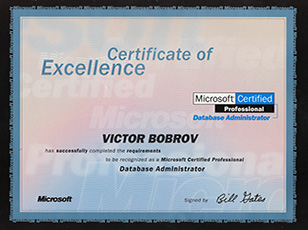

This certification demonstrates our commitment to technical excellence, deep expertise in Microsoft technologies, and the ability to deliver high-quality solutions for Microsoft Access database recovery and file repair.
Victor G. Bobrov works with File Master on file structure analysis, damaged file recovery, database recovery and online repair services.

A PowerPoint 2019 presentation on a USB flash drive stopped opening after a power outage
This type of corruption often occurs if the power goes out while PowerPoint is modifying the internal structure of the PPTX file: some of the data has already been written, but the presentation's tables and XML components haven't had time to save properly yet. First, copy the corrupted file from the USB drive to your local disk and work only with the copy to prevent accidental writing to the USB drive from further damaging the original. Next, try the File → Open → Browse → Open and Repair command in PowerPoint, and check the AutoRecover folder for an earlier automatically saved version of the presentation.
If PowerPoint continues to display the "Unable to read file" error, open the local copy of the corrupted file in the PPTX Repair Kit, run an analysis, and export the recovered slides and other data directly to Microsoft PowerPoint. Then save the result as a new .pptx or .ppt file.
If you cannot install the program, upload a copy of the corrupted presentation to the online service www.pptx.repair via a browser, and after processing, download the recovered result in .PPTX format. It is especially important not to save the new file over the corrupted original: leave the original copy unchanged until you have verified the recovery result.
A PPTX file from OneDrive is corrupted after a synchronisation conflict with PowerPoint for Microsoft 365
In the event of a cloud synchronisation conflict, corruption can occur if OneDrive receives different versions of the same PPTX file or if synchronisation is interrupted while the file is being updated. First, pause synchronisation for the problematic file and download a separate local copy to prevent the cloud client from replacing it with another version. The first step in recovering the presentation is to check the Version History in OneDrive and open several previous versions. Sometimes this is enough to restore the presentation to its pre-conflict state. You can also try opening the downloaded copy using PowerPoint's built-in Open and Repair feature.
If the previous version is too old and the corrupted PPTX file contains important recent changes, restore that specific copy using the PPTX Repair Kit, export the recovered elements to PowerPoint, and then save them under a new name.
An alternative option for non-Windows devices is to upload the corrupted .pptx file to the online service www.pptx.repair from a Mac, tablet, or other device and retrieve the recovered presentation as a .PPTX file. After successful recovery, compare the resulting file with the latest working version on OneDrive to merge any missing slides manually.
An old PPT file from PowerPoint 2003 was partially lost after bad sectors appeared on the disk
If the drive has unreadable or bad sectors, part of the binary structure of the old .PPT file may have been physically lost even before the file was copied to the SSD. Do not perform any further file system repair operations on the only copy of the presentation: first, save several copies of the file you've already read to another drive. As an initial check, try opening the PPT file in another compatible version of PowerPoint, and if it loads even partially, immediately use "Save As" to create a new file without overwriting the original. You can also search for temporary, backup, and auto-saved copies of the presentation on your old computer.
For more thorough data recovery, select the corrupted .ppt file on the first page of the PPTX Repair Kit utility: the program will analyse the presentation's structure, after which the recovered data can be exported to an installed copy of Microsoft PowerPoint and saved as a new .pptx or .ppt file.
If access to a Windows computer is difficult, you can upload a copy of the old PPT file to the online service www.pptx.repair and perform the recovery via a web browser. If physical sectors are damaged, some individual objects may be irretrievably lost; therefore, be sure to review the final presentation from the first slide to the last.
PowerPoint 2007 stopped recognising a PPTX file after running CHKDSK
CHKDSK repairs the file system structure but does not restore the logical structure of PowerPoint documents; therefore, if clusters are corrupted, the file may retain its name and size but lose some of its internal content. First, create a byte-for-byte copy of the existing PPTX file and do not experiment with the original anymore. Next, check whether any additional recovered fragments or earlier copies of the file appeared after running CHKDSK, and then try using PowerPoint's standard "Open and Repair" feature on the local copy. Since a .pptx file is a package of structured components, you can also check on the copy to see if the file is identified as a ZIP container; the absence of some internal components explains the "unrecognised format" error message.
If the standard PowerPoint application does not accept the file, select it in the PPTX Repair Kit and run the recovery process; then export the recovered content to PowerPoint and save the new presentation separately.
Another option is to upload a copy to the online service www.pptx.repair and retrieve a recovered .PPTX file without installing any desktop software. Do not rename random CHKDSK-recovered fragments to .pptx without verifying them first: simply having the same file extension does not automatically turn them into a complete presentation.
A PowerPoint 2016 presentation won't open from a network drive and freezes
First, isolate the network issue from the file itself: copy the presentation from the shared folder to your local drive and try opening the local copy. If the local copy also causes PowerPoint to freeze, the file transfer or save process likely failed while the PPTX file's structure was being modified, and the server error message was merely the first symptom. Next, check for previous versions of the file on the server and any backups, and try using PowerPoint's "Open and Repair" feature on the local copy. If PowerPoint freezes only when opening this specific document, there's no need to open the original from the network resource repeatedly—create a separate copy for recovery.
Install the PPTX Repair Kit, select the locally saved corrupted file, run an analysis, export the recovered content to Microsoft PowerPoint, and save the resulting presentation under a new name.
For employees who are out of the office or working on macOS, you can use the online service www.pptx.repair: submit the corrupted file for processing via a browser, and the recovered result is saved as a .PPTX file. After recovery, upload the new file to the server only after verifying all slides locally.
Antivirus software interrupted the saving of a PowerPoint 2021 presentation
A virus may not have caused the error in the presentation. Rather, it may be due to an interruption in the write operation or a file lock when PowerPoint was replacing it with an updated version. First, make a copy of the damaged PPTX file and scan your computer separately with security software, without disabling protection, to recover the document. Next, check the AutoRecover and Recover Unsaved Presentations folders, as PowerPoint may have saved a temporary version before the crash. Also, try the Open and Repair feature on the copy of the document and make sure there is no system lock in the file properties after loading or copying.
If the built-in recovery tools don't work, open a copy of the damaged presentation in the PPTX Repair Kit: after the analysis, export the available slides and objects directly to PowerPoint and save them to a new .pptx or .ppt file.
For devices where installing a Windows program is not possible, use the online recovery service at www.pptx.repair to obtain a new .PPTX file. Before sending the recovered presentation to colleagues, be sure to scan the result again with antivirus software.
PowerPoint for Microsoft 365 on macOS received an incomplete PPTX file after a cloud download
In this case, the first suspicion should not be internal corruption of the original presentation, but rather an incomplete download. If the local file is smaller, some of the data may not have made it to the Mac at all. First, try downloading the document again using a different, stable connection or browser, and compare the file sizes. If version history is available, download the previous version separately. Never start restoring the only cloud copy—first save the problematic file locally under a different name.
Since the PPTX Repair Kit is a desktop application for Windows, on macOS it's easier to upload the existing file to the online service www.pptx.repair directly through your browser and check what data can be extracted into a new .PPTX file.
If you have a Windows computer with Microsoft PowerPoint nearby, you can process the same copy in the PPTX Repair Kit, export the recovered data to PowerPoint, and save the new presentation. However, if the file has only been partially downloaded, no program will be able to recover missing bytes, so re-downloading the complete original file remains the best option. Recovery is most useful when the file is the expected size, but its internal structure is corrupted.
PowerPoint 2013 crashes when opening a presentation via RDP
If the error occurs only when working with a single PPTX file, this is a much stronger indication that the specific presentation is corrupted than that PowerPoint itself is malfunctioning. An RDP disconnection doesn't necessarily corrupt the file on its own. Still, if the remote computer was in the process of saving or lost access to a network resource at that moment, the presentation's structure may have been left incomplete. First, make a local copy of the file, restart PowerPoint, and try the Open and Repair feature. Also, check AutoRecover to see if there's a version created before the session was disconnected. Do not open the problematic document dozens of times in a row if each attempt causes POWERPOINT.exe to crash.
If standard methods do not help, select the corrupted copy in the PPTX Repair Kit, run the repair, and after the analysis, export the recovered data to Microsoft PowerPoint. Save the resulting presentation as a new .pptx file or, if necessary, as a .ppt file.
If you temporarily cannot access the remote desktop, you can transfer the file to an accessible device and repair it using the online service at www.pptx.repair. After repair, check charts, images, and embedded objects separately, as complex elements may have been located in the corrupted part of the file.
After updating Windows, PowerPoint 2010 reports an error that it cannot fix
The mere fact that the problem appeared after a Windows update does not necessarily prove that the update corrupted the PPTX file: the cause could also be a defect in the specific file that became apparent when it was opened again. First, make a copy of the presentation and check whether other .pptx files open in PowerPoint 2010; if so, reinstalling Office should not be your first step. As a first step, try the Open and Repair feature, restore a previous version of the file from a Windows backup, and search for an AutoRecover copy. If the document opens partially, immediately transfer the accessible slides to a new blank presentation in small batches and save the new copy after each step.
If PowerPoint won't let you access the slides at all, run the PPTX Repair Kit, select the corrupted file, and export the recovered elements to Microsoft PowerPoint, then save the result under a different name.
To recover the file without installing any software, use the online service www.pptx.repair, which will process the uploaded presentation and generate a recovered .PPTX file online. Leave the original file untouched until you're sure the new presentation contains all the important content.
In PowerPoint 2024, slides from a NAS open with overlapping text and misaligned objects
RAID protects against some disk failures, but it does not guarantee the logical integrity of a file if the write operation to the NAS was interrupted or a corrupted version had already been saved to the array. First, copy the PPTX file from the NAS to a local SSD and check for previous versions, snapshots, or storage backups—this is the free and safest way to recover the presentation's original structure. If PowerPoint opens part of the presentation, try saving it immediately under a new name and moving the intact slides to a clean file.
If the document doesn't open properly or most of its structure is corrupted, repair the local copy using the PPTX Repair Kit and export the recovered slides, text, graphics, and other available data to Microsoft PowerPoint, then save the new presentation.
The online service www.pptx.repair is useful if you have access to a NAS from macOS, a tablet, or another device: upload a copy and save the recovered result as a .PPTX file. Keep in mind that in cases of severe damage, recovering the content and restoring the exact positioning of objects are not the same thing, so you may need to check the final layout of some slides manually. Once you've successfully recovered the file, do not replace the file on the NAS until you've created a separate backup.
An old PowerPoint 2002 PPT file is no longer recognised after being transferred from RAID
In older versions of PowerPoint, the message text doesn't always accurately identify the cause, so the virtual memory warning may accompany a corrupted or incorrectly read file and doesn't necessarily mean there's a lack of RAM. Compare the size of the transferred PPT file with a backup or the original copy on the RAID, if it's still available, and work only with the copy on a healthy local drive. You can then try opening the file in a different version of PowerPoint that supports older formats; if the document opens, use "Save As" to create a new presentation instead of overwriting the original. Also check the array's backup copies and older versions of the file from before the failure.
If the format is recognised as PPT but the structure is corrupted, submit the file to the PPTX Repair Kit. After analysis, the recovered data can be exported directly to Microsoft PowerPoint and saved as either a .pptx or .ppt file.
If you don't have a suitable Windows computer, upload a working copy of the old file to the online service www.pptx.repair and save the recovered presentation in .PPTX format. Increasing virtual memory again only makes sense if similar errors occur with other large presentations, not just with one specific PPT file.
PowerPoint 2000 opens an old presentation with some text and images missing
If the external drive read the file with errors, individual blocks of the old binary PPT file may have been lost, causing PowerPoint to recognise the presentation container but fail to parse all embedded objects correctly. The first step is to save an accessible copy to a functional drive and stop using the external drive as your primary storage source. Next, try opening the PPT file on another computer using a different, compatible version of PowerPoint; if at least some of the slides display, transfer them to a new presentation and save the result immediately. Also check old backups, temporary folders, and other copies of the file with similar names.
For a systematic and in-depth analysis of the corrupted PPT file, use the PPTX Repair Kit: select the file, wait for the structure to be parsed, export the recovered content to Microsoft PowerPoint, and save the restored presentation separately.
You can perform a similar procedure using the online service www.pptx.repair without installing any software and receive the result in .PPTX format. Do not delete the corrupted PPT file after the first recovery attempt. Another copy of the file or a re-scan of the source storage device by data recovery specialists may sometimes allow you to recover additional elements.
A PowerPoint for Microsoft 365 PPTX file won't open on an iPad after an interrupted file transfer
On a mobile device, first rule out an incomplete download: compare the size of the local file with the size of the original in the cloud, or ask the sender to provide the exact size of the original presentation. Do not delete the only copy you have—save it separately, and then try downloading the original again using a stable Wi-Fi connection. If the cloud storage service supports previous versions, check for free to see if there's a working copy there from before the last change.
If redownloading isn't possible, open a browser on your iPad, upload the corrupted .pptx file to the online service www.pptx.repair, and after processing, save the recovered .pptx file. If the transfer was interrupted before the file was fully received, it is impossible to recover the physically missing data; therefore, online recovery is most useful for a full-size file whose internal structure has been corrupted. Once you receive the result, open each critical slide on your iPad in advance, before the meeting begins.
A PowerPoint 2019 .PPTX file is no longer recognised on Android after being copied via USB
An interrupted USB copy can leave a file on the receiving device with the correct name and extension, but containing only a portion of the original data. First, copy the existing PPTX file from your Android device to another storage medium and keep the original version on the tablet unchanged. Next, check the Recycle Bin, file history, OneDrive, Google Drive, and other locations where the original presentation might have been automatically synced or backed up, since a complete copy is always preferable to restoring an incomplete one. If the file is the expected size, try opening it on Windows using PowerPoint's Open and Repair feature.
If that fails, restore a copy of the presentation using the PPTX Repair Kit, export the recovered data directly to Microsoft PowerPoint, and save the new presentation as a separate .pptx or .ppt file.
If you currently only have an Android tablet, use the online service www.pptx.repair via your browser and save the recovered file as a .PPTX file. If the file size is significantly smaller than the original, you should expect that the slides or multimedia objects located in the missing portion cannot be fully recovered.
PowerPoint 2024 on macOS won't open a PPTX file after an index failure and copying from a NAS
After a NAS failure, the file's directory and metadata may appear correct, while individual blocks of content may belong to a corrupted or incomplete version of the document. First, save the problematic PPTX file locally on your Mac and ask the administrator not to delete any snapshots, backups, or versions of this file found after the file system was restored. Next, compare the available versions by size and modification date, and try opening each one separately; even an older working version can serve as a basis for later merging the recovered slides.
On a Mac, it's convenient to start with the online service www.pptx.repair: upload a copy of the corrupted presentation via your browser, run the recovery, and save the result as a .PPTX file without overwriting the original file.
If you need to try again, transfer a copy to a Windows computer running Microsoft PowerPoint, process it using the PPTX Repair Kit, and export the recovered data directly into PowerPoint. Then save the new presentation as a .pptx or .ppt file. Compare the recovered file with a weekly backup and merge only the missing, more recent slides into it if part of the formatting is corrupted. This approach is generally safer than trying to manually fix a single file directly on the NAS.

 Download
 PPTX Repair Kit for Windows PC
Download
Download PPTX Repair Kit for Windows PC
Progress
Please wait while the file is repaired